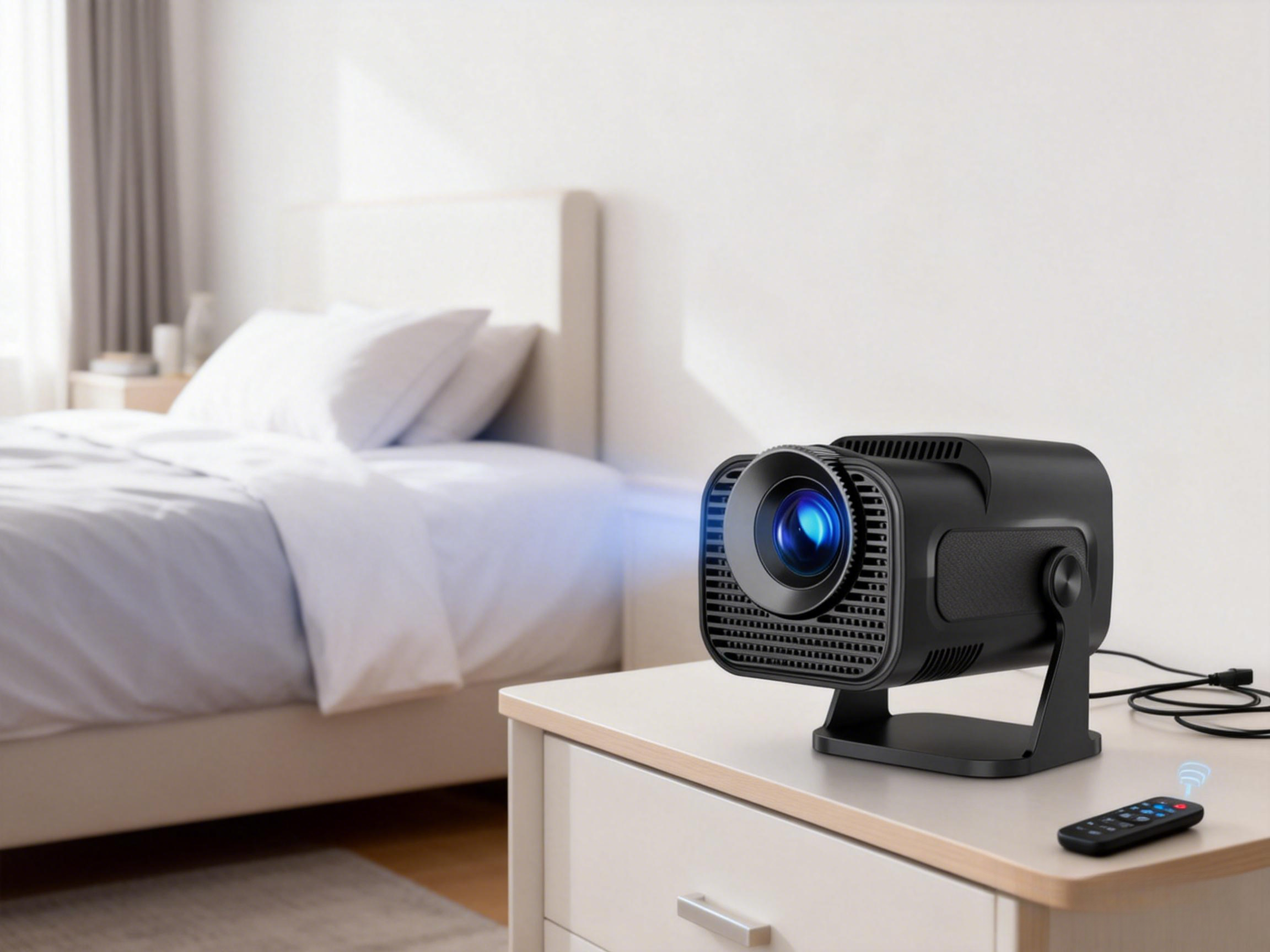

Watching a movie or TV show when your projector suddenly goes black and shuts off can be very frustrating. Some common scenarios include:
· The projector turns off after just a few minutes of use
· It shuts down or restarts shortly after powering on
· It repeatedly cuts off during playback
· It turns off without any user interaction
Many users’ first reaction is: “Is my projector broken?”However, in most cases, a projector shutting off does not indicate hardware failure. Instead, it is usually the device’s built-in protection mechanisms at work.
This article will cover the projector’s operating principles, common causes of shutdowns, step-by-step troubleshooting, and daily maintenance tips to help you:
1. Understand why projectors shut off automatically
2. Identify issues quickly
3. Prevent future shutdowns
4. Restore stable operation efficiently
1. Why Projectors Shut Off Automatically
Unlike TVs, projectors contain:
· Light source modules
· Main control chips
· Power systems
· Cooling fans
During operation, these components generate heat continuously.Most modern smart projectors are equipped with multiple protection mechanisms, including:
· Overheat Protection
· Fan malfunction detection
· Auto power-off / sleep timers
· System self-protection
When the device detects high temperatures or abnormal operation, it will shut down automatically to protect critical components.
In short, automatic shutdown is a safety feature, not a sign of hardware damage.
2. Common Causes of Projector Shutdown
Based on real-world usage and technical experience, the most common causes include:
1. Overheating (Most Common)
Continuous operation or poorly ventilated environments can cause internal temperatures to rise quickly. Examples:
· High ambient temperature in summer
· Placement in a closed cabinet
· Placed too close to walls or ceilings
· Continuous operation for several hours
Once the temperature exceeds safe limits, the projector will automatically shut down. Signs include: the device becoming noticeably hot before powering off.
2. Fan Malfunction or Reduced Cooling Efficiency
The fan is the projector’s core cooling component.
If:
· The fan is damaged
· The fan speed is abnormal
· Dust or debris is blocking airflow…
the device may overheat and trigger shutdown.
If you hear little or no airflow after powering on, the fan may be malfunctioning.For a more in-depth guide on projector heating, cooling designs, and daily temperature management, see our related blog.
3. Blocked Ventilation
Incorrect placement can also cause overheating. Common mistakes include:
· Placing in a narrow compartment or drawer
· Surrounding the projector too closely with walls
· Mounting too close to the ceiling
· Covering vents with cloth or other objects
Even if the fan works, blocked airflow reduces cooling efficiency.
4. Auto Power-Off or Sleep Timer Enabled
Some projectors have default settings such as:
· Sleep Timer
· Auto Power Off
Reaching the set time will automatically turn off the projector, which may appear as a malfunction. Check the system settings to disable these options if needed.
5. Firmware or System Issues
Occasionally, outdated firmware or software conflicts can cause temperature misreadings or unstable operation.Updating or refreshing the official firmware often resolves these issues.
6. Unstable Power Connection
Loose plugs or unstable power supply can also cause unexpected shutdowns. Be sure to check power connections.
3. Step-by-Step Troubleshooting
If your projector keeps shutting off, follow these steps in order:
✅ Step 1: Check for Overheat Warnings
Look for Temperature Warning or Overheat Alert on the screen.
If present, prioritize improving the cooling environment.
✅ Step 2: Check Fan Operation
Observe or listen after powering on:
· Normal: continuous airflow and warm air from vents
· Abnormal: little or no airflow
If the fan does not work, it may require repair or replacement.
✅ Step 3: Optimize Placement
Ensure:
· At least 10–20 cm of space around the projector
· Not placed directly against walls or ceiling
· Not enclosed in a closed space
Proper airflow significantly reduces the chance of automatic shutdown.
✅ Step 4: Disable Auto Power-Off Settings
Check and disable:
· Sleep Timer
· Auto Power Off
Test again to see if the issue persists.
✅ Step 5: Update or Refresh Firmware
If the hardware is normal but the problem continues, contact the manufacturer for the latest firmware update.
Many stability issues can be resolved through system optimization.
4. Daily Maintenance Tips (Preventing Automatic Shutdown)
Good usage habits can greatly extend your projector’s lifespan:
· Regularly clean dust from vents and fans
· Maintain sufficient ventilation space
· Avoid high-temperature or enclosed environments
· Take breaks after several hours of continuous use
· Keep the system firmware up to date
These simple measures are often more effective than repairs.
5. When to Contact Support
Contact official support if you encounter:
· Fan completely not spinning
· Repeated restarts or failure to boot
· Firmware update does not resolve the issue
· Abnormal noises or odors
· Potential hardware issues requiring maintenance
6. Conclusion
Projector shutdowns are usually related to heat or settings rather than product quality.
By:
✔ Checking the fan
✔ Improving ventilation
✔ Adjusting system settings
✔ Updating firmware...most issues can be resolved quickly.
Modern smart projectors (including Magcubic models) are equipped with advanced temperature control and stable system design. With proper placement and maintenance, they can operate reliably for years.
FAQ
Q1: The projector shuts off within a few minutes of use. What should I do?
First, check the ventilation and ensure the fan is working properly.
Q2: How much ventilation space should I leave around the projector?
At least 10–20 cm on all sides.
Q3: How can I prevent the projector from shutting off again?
Keep the area ventilated, clean dust regularly, and avoid prolonged use in high-temperature environments.